4/2/2026
Highbar + Luma: Our First Integration
We shipped our first productized integration. Now anyone running events on Luma can add an AI-powered event app in minutes. Here's why we started with Luma and how to set it up.

We just shipped our first integration: Highbar + Luma.
Now, anyone running events on Luma can add an AI-powered event app in minutes. No configuration. No implementation timeline. Connect and go.
Because they get it.
Luma is a truly modern event tech company. Six people. Three engineers, three designers. No sales team. No marketing team. Totally product-led. And they did it pre-AI.
They shipped the first version in a week. Five years later they power millions of events and have become the default platform for the tech community and beyond.
What we respect most is what they chose not to build. They tried the all-in-one suite approach and walked away from it. That takes discipline most companies never develop.
They know who they are and they know who they're not.
We take inspiration from that. That's what we're building at Highbar.
We love how it feels to register with Luma and hand off to Highbar. Register on Luma in seconds, login to the event app in a few more.
This is an optimistic future for event tech. Focused tools that do things exceptionally well, integrate cleanly, and lead with transparency.
We built Highbar with a similar ethos and we're making launching an event app as easy as spinning up a Luma page.
Connecting Highbar to your Luma event takes about two minutes. Here's the full walkthrough.
1. Open Access Management
If you don't already have a Highbar account, signing up is easy. Start building your app and head over to the Access Management area and look for the integrations button.
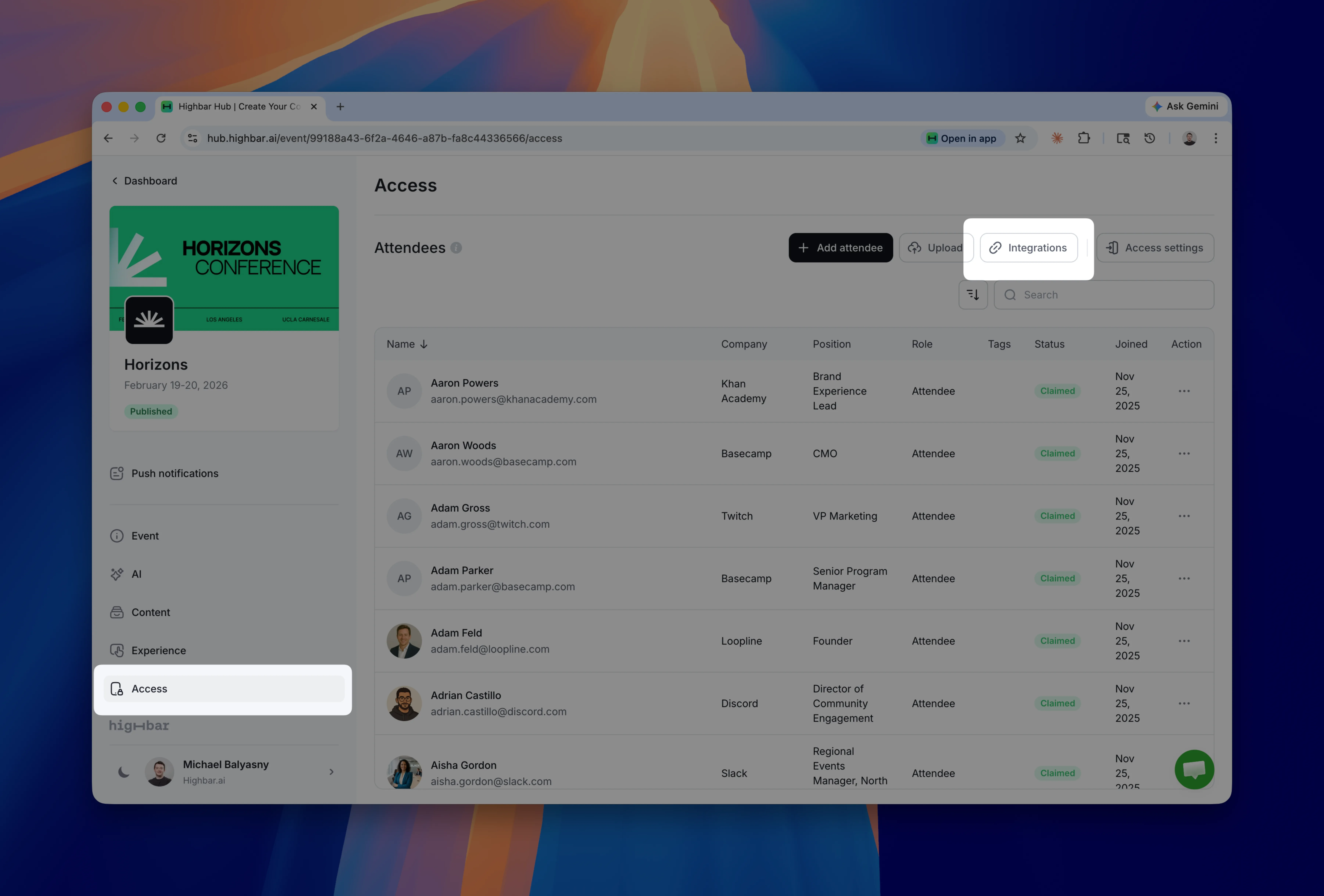
2. Click on Integrations
You'll see a list of integrations with several other platforms coming soon. Select Lu.ma.
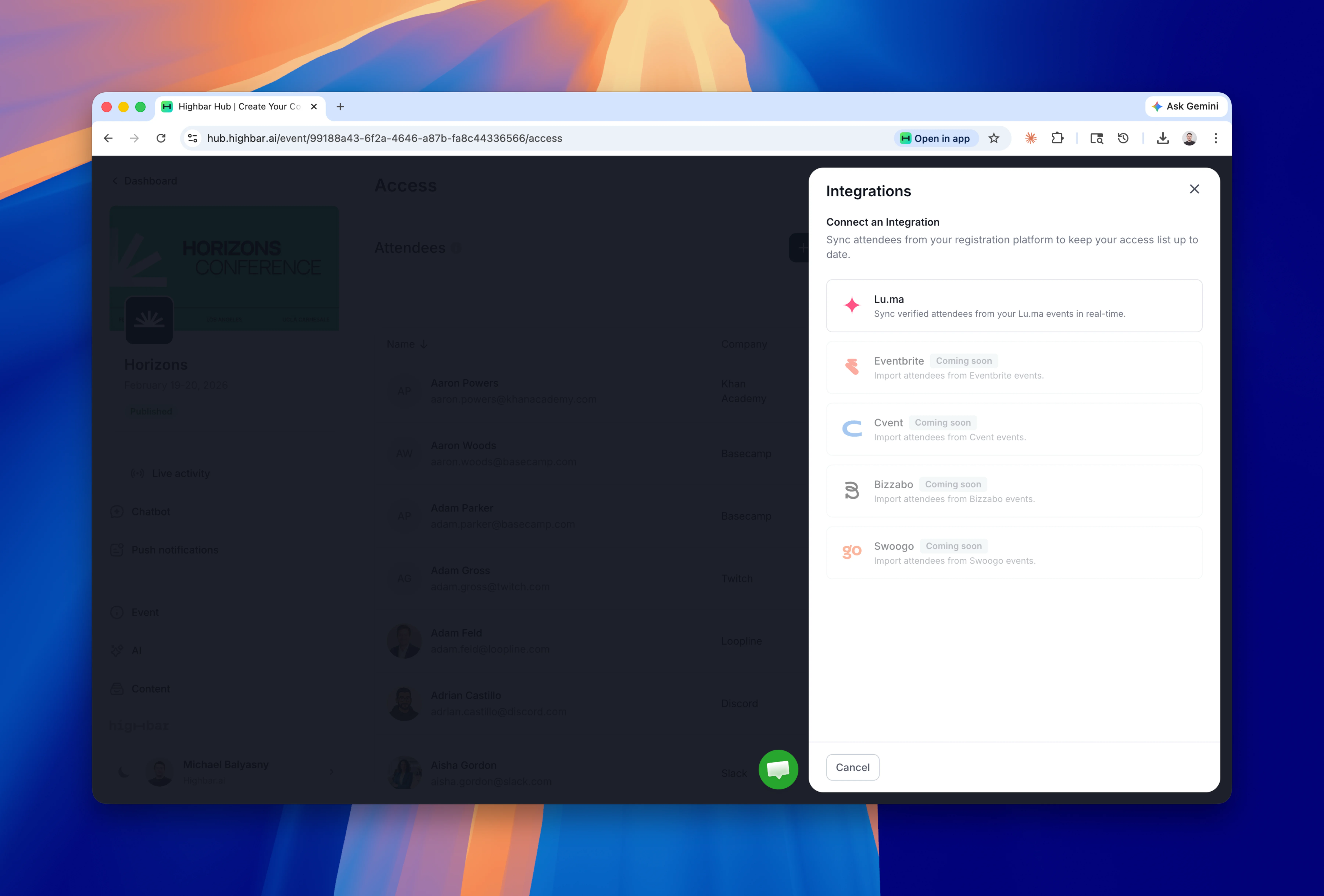
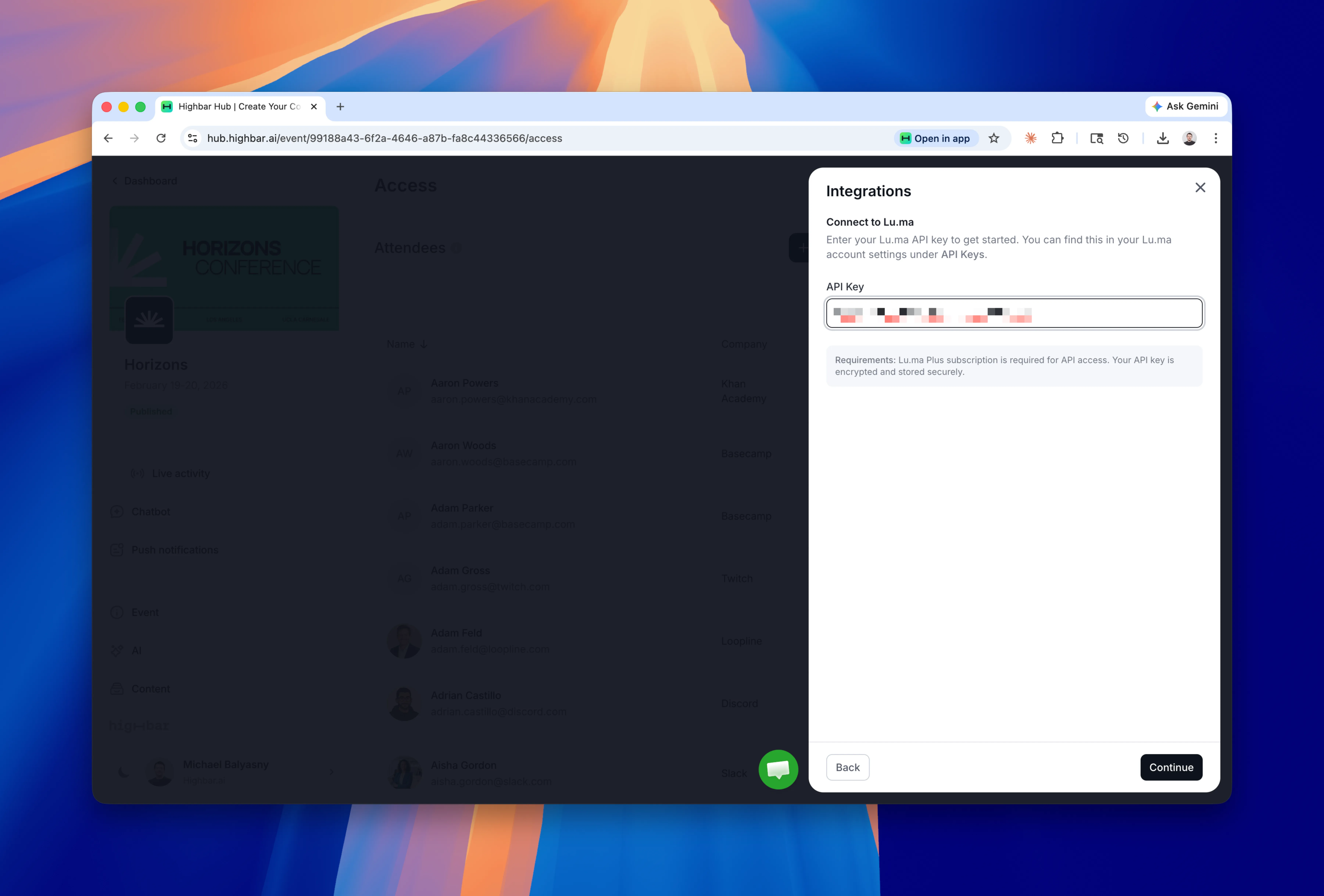
3. Enter Your API Key
This requires a Lu.ma Plus account. You can find your API key in Settings > Developer inside your Luma account.
4. Select Your Event
Once connected, we'll pull the list of events associated with your Luma account. Select the one you want to connect and link it to your Highbar app.
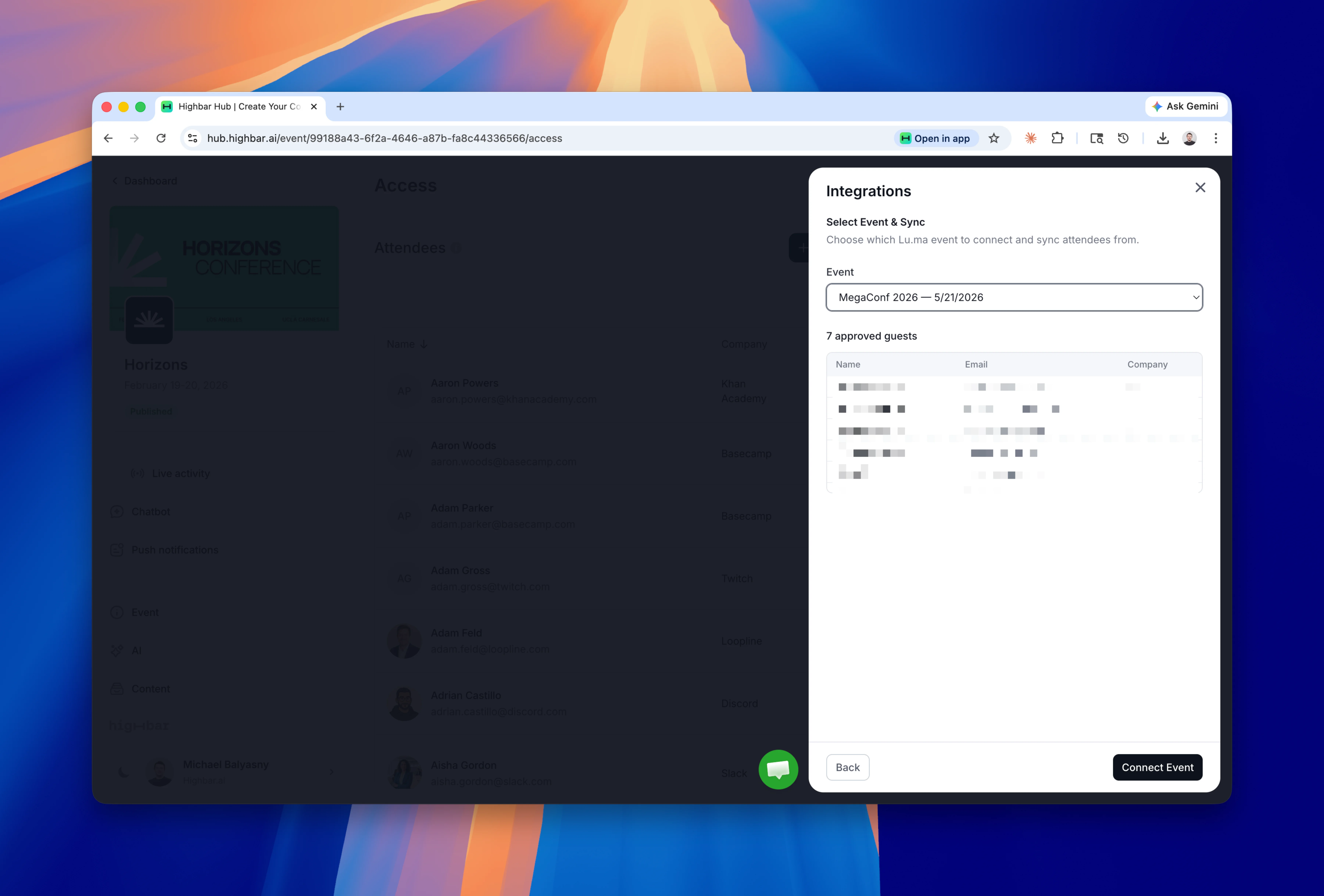
5. Preview Your Attendees
Before confirming, we'll show you a preview of the attendees that will be added from your Luma event so you can verify everything looks right.
6. Confirm, Connect and Manage
Hit confirm and the connection is live. From here you can manage the integration or disconnect at any time from the same screen.
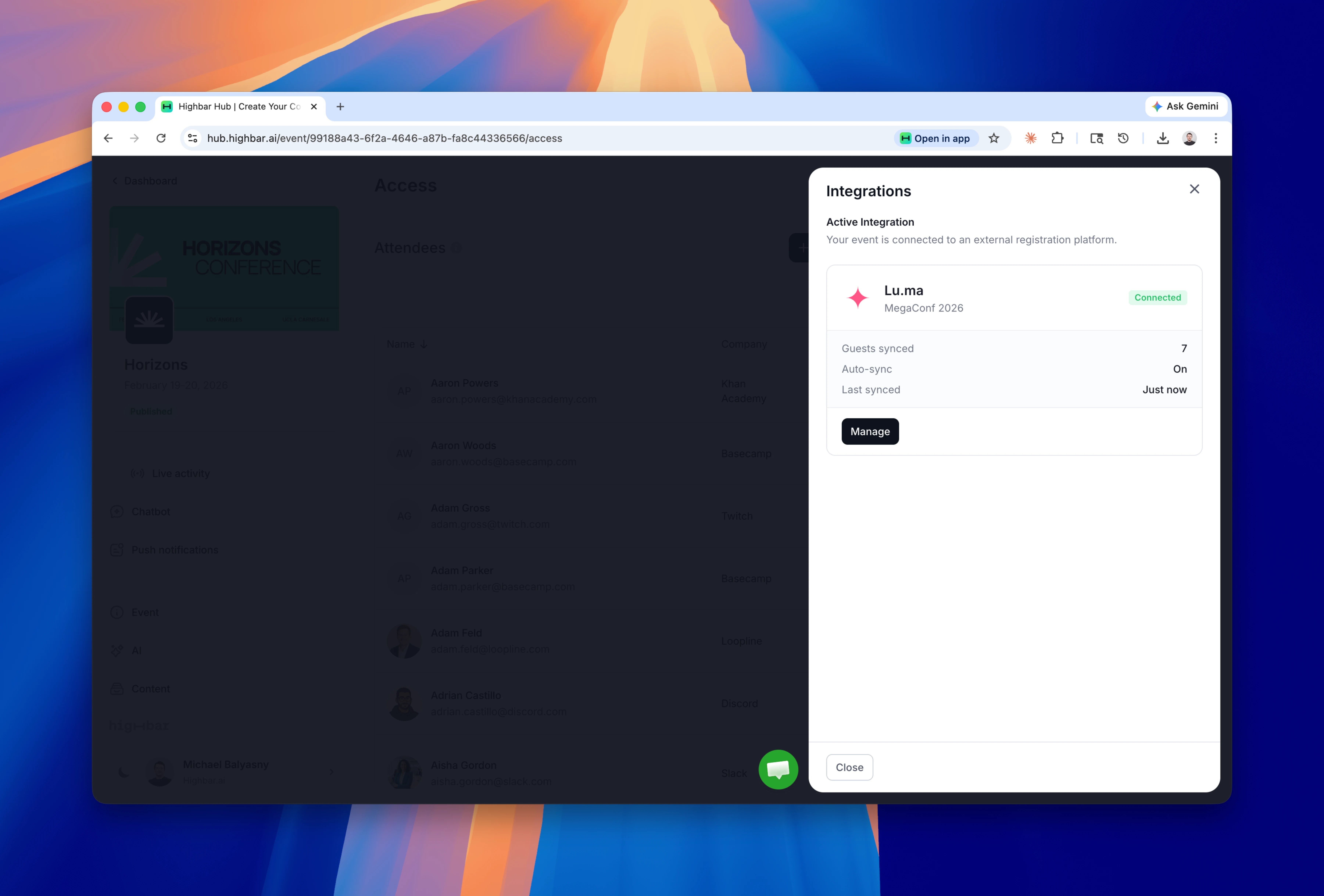
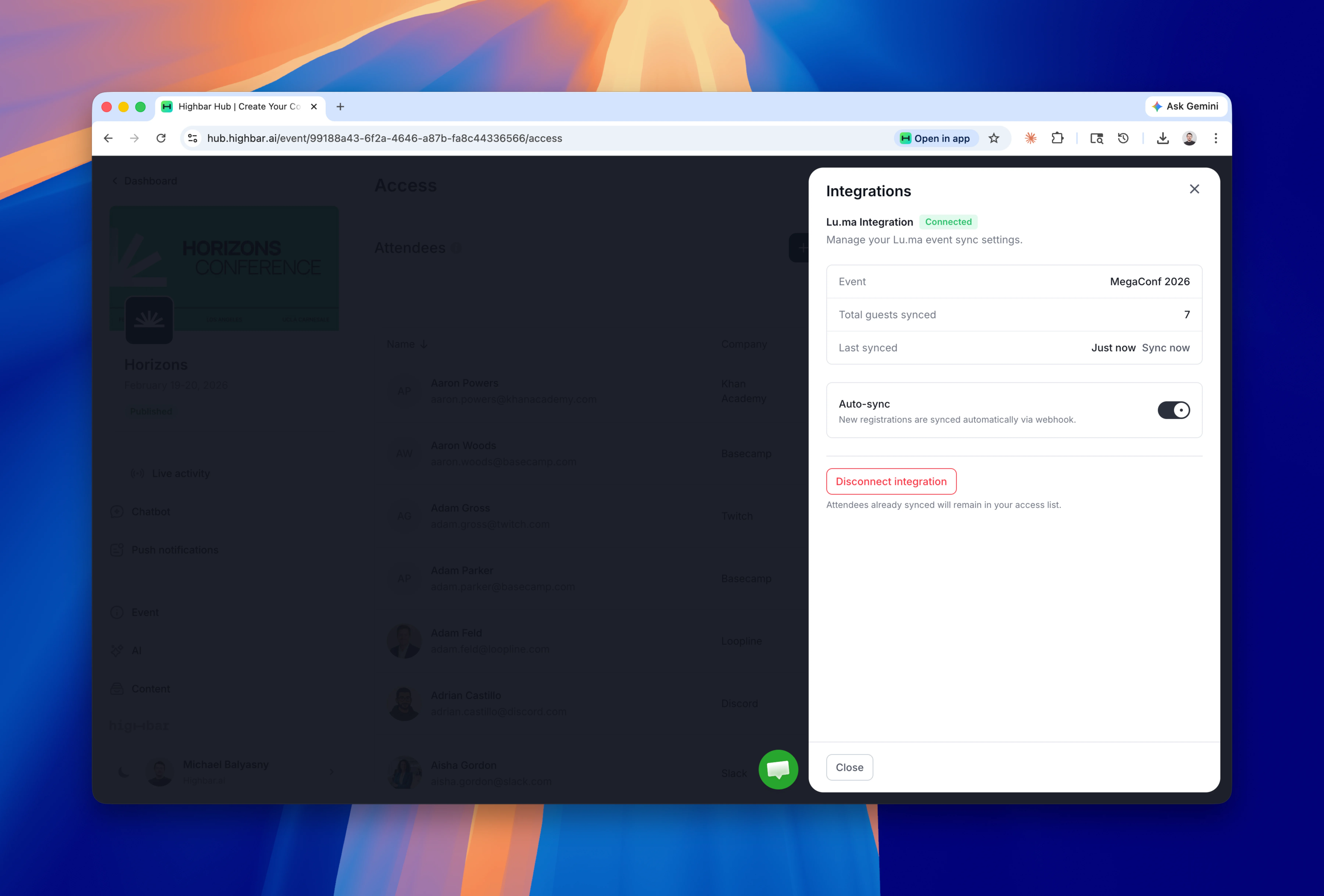
7. Automatic Sync
Once connected, new attendees will be pulled in automatically as they register for your Luma event. No manual imports, no CSV files, no extra steps.
Ready to try it? Get started with Highbar and connect your first Luma event today.